Integration with n8n
 The DynamicPDF API provides integration with the n8n third-party platform so you can easily integrate PDF capabilities into your existing n8n workflows.
 The DynamicPDF API can be used directly in an n8n workflow by combining the HTTP Request node with n8n’s binary file handling and JSON features. This page explains how to configure authentication, send different types of request bodies, and work with common DynamicPDF API endpoints.
Authentication
All DynamicPDF API endpoints use the same authentication mechanism.
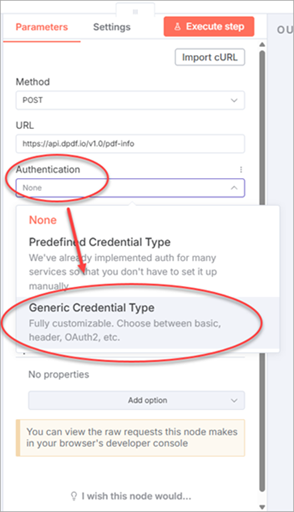
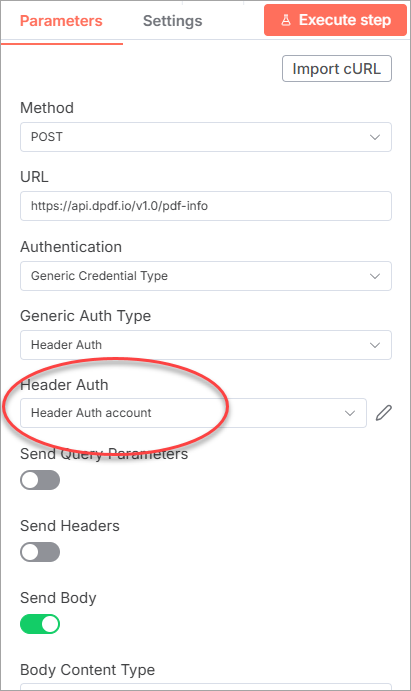
1. Configure Generic Credential Type
When adding your first HTTP Request node:
- Open Authentication.
- Choose Generic Credential Type.
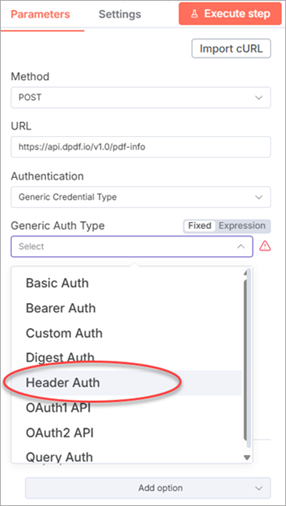
- Select Header Auth.
2. Create Header Auth Credential
On first use, n8n will prompt you to create a credential:
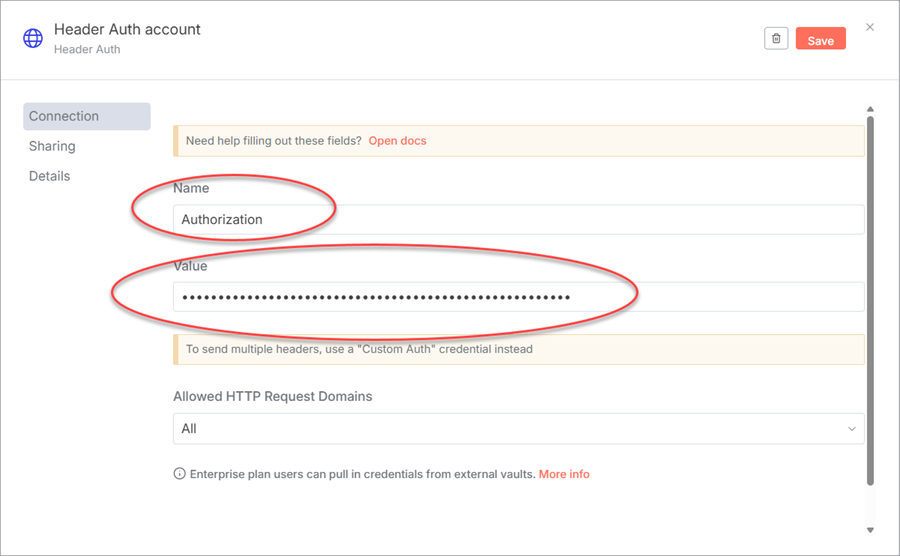
- Name:
Authorization - Value:
Bearer YOUR-API-KEY
Once created, this credential is saved and can be reused by all DynamicPDF API requests. You do not need to create it again.
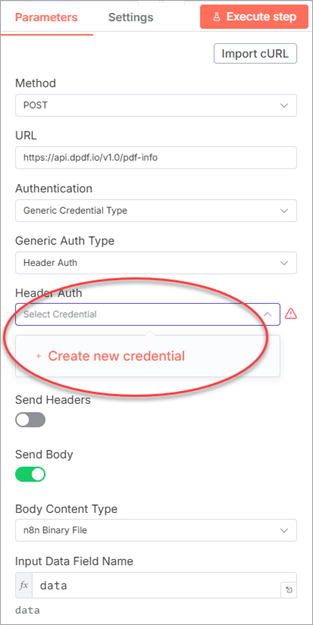
- Select Create new credential from Header Auth dropdown.
- Configure the Header Auth account with Authorization as Name and
Bearer ---api-key--as Value.
You can now reuse this credential by selecting Header Auth account when adding other HTTP Request nodes.
Body Content Types
The DynamicPDF API endpoints accept different request body formats depending on their purpose. n8n supports all request body formats through the Send Body options within the n8n HTTP Request node.
Binary File Requests
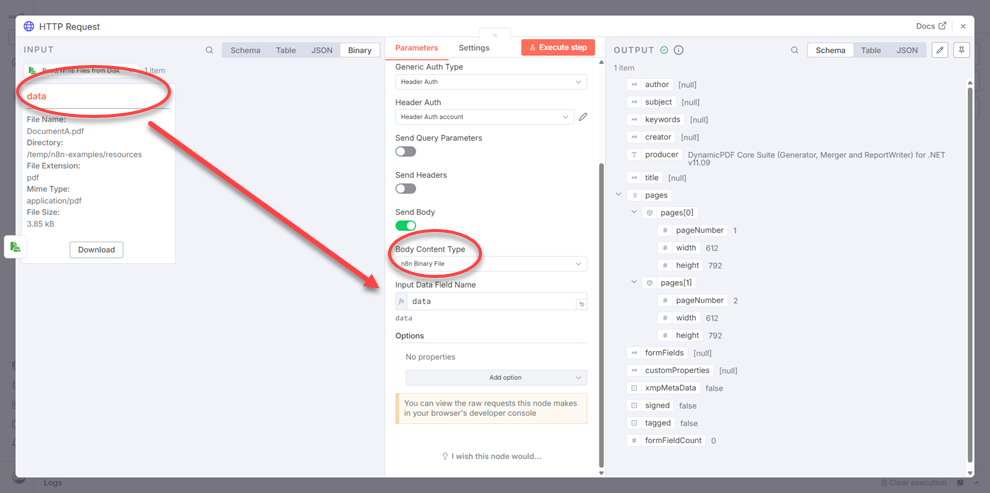
The following DynamicPDF API endpoints all expect a binary file as the POST body.
pdf-infopdf-textimage-infopdf-security-info
Steps
- Toggle Send Body and select n8n Binary File as Body Content Type.
- Assign the binary data from a previous node (for example, a file download or disk read) to data.
JSON Requests
The pdf (for merging PDFs) accepts JSON payloads containing base64-encoded file data.
Steps
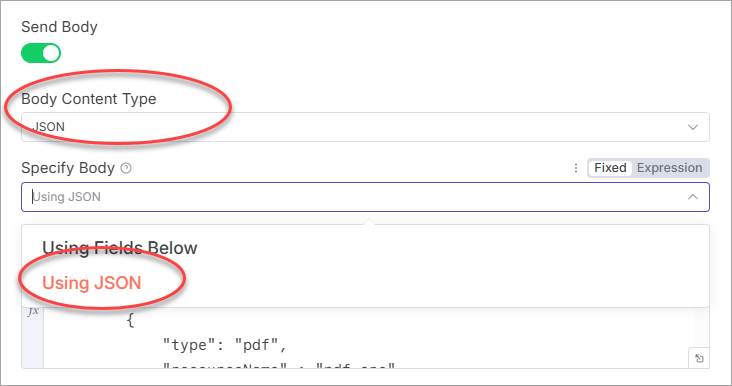
- Set Body Content Type to JSON.
- Set Specify Body to Using JSON.
- Enter your JSON in the text area.
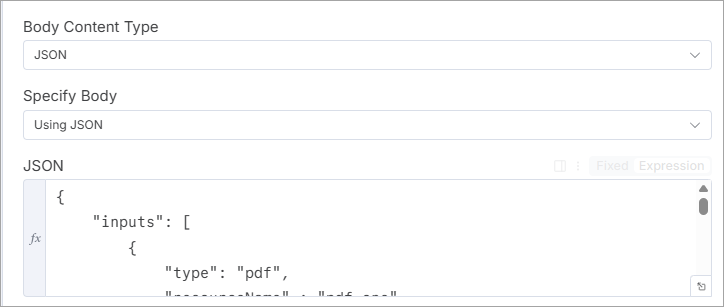
You may supply base64 content directly or load it dynamically from previous steps.
{
    "inputs": [
        {
            "type": "pdf",
      		"resourceName" : "pdf_one"
    	},
		        {
            "type": "pdf",
      		"resourceName" : "pdf_two"
    	}
    ],
    "resources": [
        {
            "name" : "pdf_one",
			"data": "{{ $json.pdf_oneBase64}}"
        },
		 {
            "name" : "pdf_two",
			"data": "{{ $json.pdf_twoBase64}}"
        }
    ]
}
Multipart Form Requests
The following DynamicPDF API endpoints require multipart/form-data.
dlex-postdlex-layoutpdf(when sending instructions.json + file resources)
Steps
- Toggle Send Body.
- Select Form-Data as the body type.
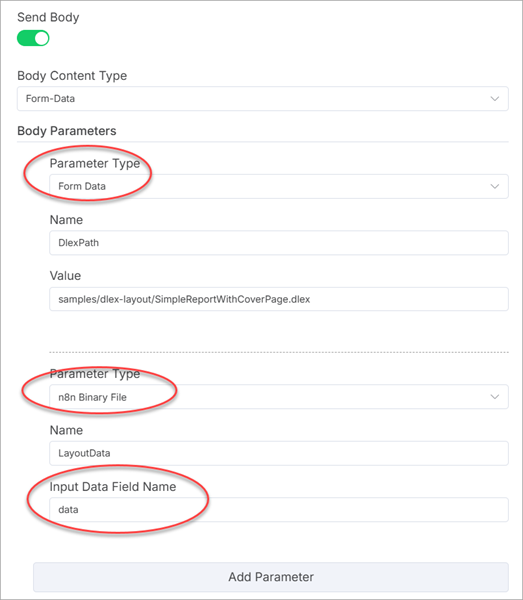
- Add form-data fields for files or text.
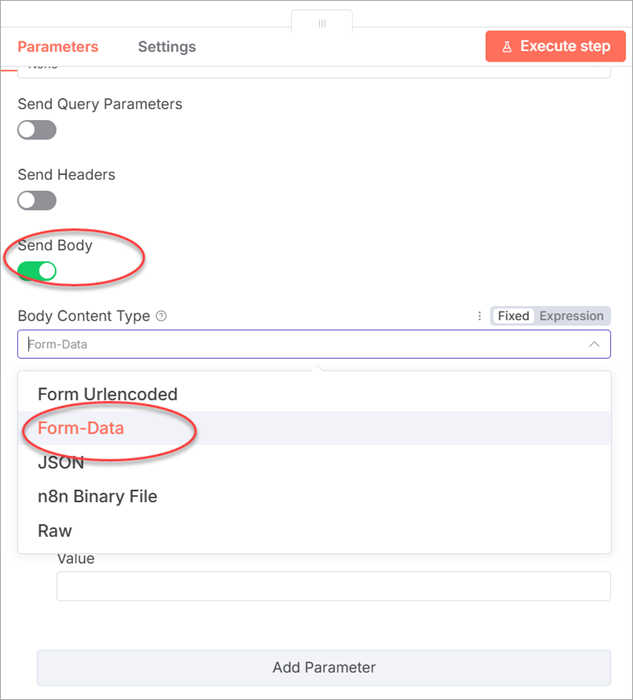
Adding file fields
To add a file field specify name and a previous node's binary file.
- Name: the form field name required by the endpoint
(
LayoutDatafor a DLEX layout file,Instructionsforpdfendpoint)
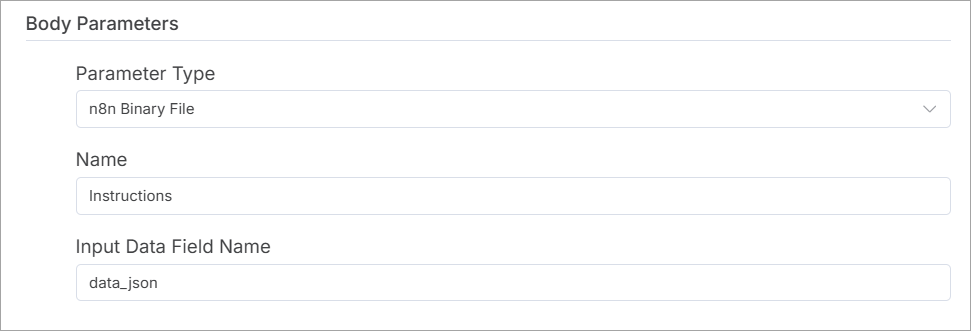
- Value: select an n8n Binary File from a previous node.
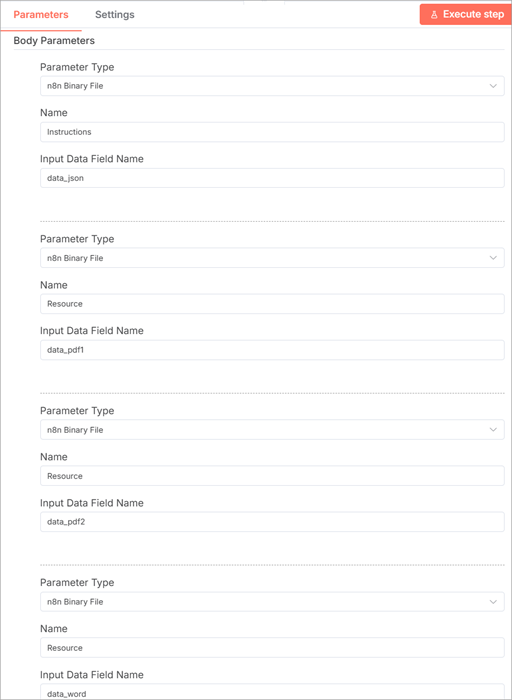
Multiple resource files
When adding multiple resources, add each file as a separate field named Resource. n8n automatically groups repeated fields with the same name into an array.
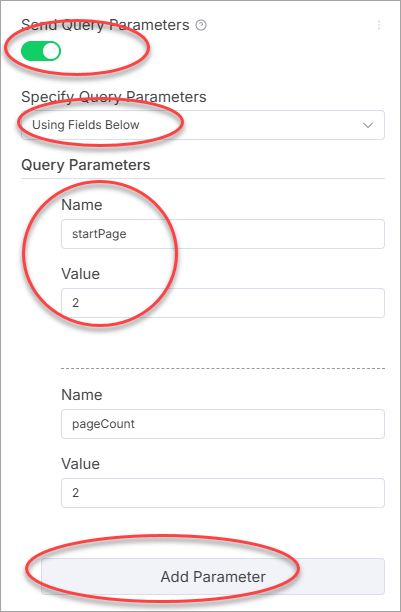
Query Parameters
The following two endpoints allow extra settings using query parameters.
pdf-text(page range, text extraction mode)pdf-image(image format & quality overrides)
Steps
- Toggle Send Query Parameters.
- Enter each Name and Value.
- Click Add Parameter to add more query parameters.
Response Format
The DynamicPDF API returns either:
- PDF binary output,
- JSON metadata, or
- XML/XMP data (for pdf-xmp).
The pdf-image endpoint returns rasterized images as base64-encoded data within a JSON response.
n8n stores the output as:
- Binary data in
$binary, or - JSON data in
$json.
You can route the n8n output into further processing steps, disk writes, or external integrations.
Sample Workflows
The following n8n sample workflows illustrate practical examples of calling and handling different DynamicPDF API endpoints within n8n.
| Workflow | Description |
|---|---|
| dlex-layout | Read a JSON data file and a DLEX template, convert both to binary, and submit them via multipart/form-data to the dlex-layout endpoint. The returned PDF is written back to disk or stored as an n8n binary file. |
| image-info | Download an image from a URL, pass its binary data to image-info using a POST request, and receive JSON describing size, type, resolution, and other metadata. |
| pdf-info | Load a PDF from disk and send it to pdf-info. The endpoint analyzes the PDF and returns information such as page count, version, and metadata. |
| pdf (form) | Download multiple files, convert them to binary, send them as multipart form data to the pdf endpoint, and save the merged PDF returned by the API. |
| pdf (JSON) | Download two PDF files, read them as binary, base64-encode them, and send them to the pdf endpoint in a JSON request to merge them. The merged PDF is saved back to disk. |
| pdf-security-info | Upload an encrypted or signed PDF and analyze its security settings, encryption type, permission flags, and signature details. |
| pdf-text | Send a PDF and specify page range via query parameters. The endpoint extracts text from the selected pages and returns text. |
| pdf-xmp | Send a PDF to extract embedded XMP metadata. The endpoint returns the XML as a file, which can be saved or processed by another node. |