Automate PDF Processing Using Make Scenarios
 Automate PDF processing using Make scenarios.
 Using the DynamicPDF API custom Make app is straightforward, as the following three sample scenarios illustrate how files can be detected, transformed, and routed automatically through the DynamicPDF API endpoints.
See the tutorial Using the DynamicPDF API Make App for detailed instructions on constructing a scenario using the Google Drive App, JSON, Iterator, and Tools built-in apps.

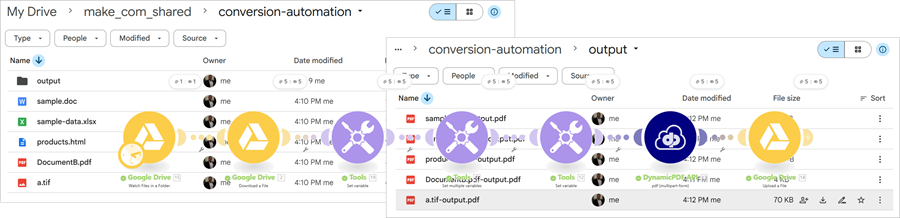
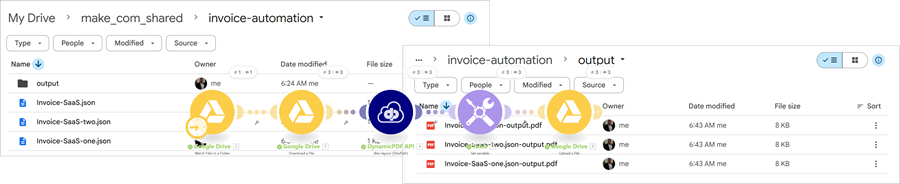
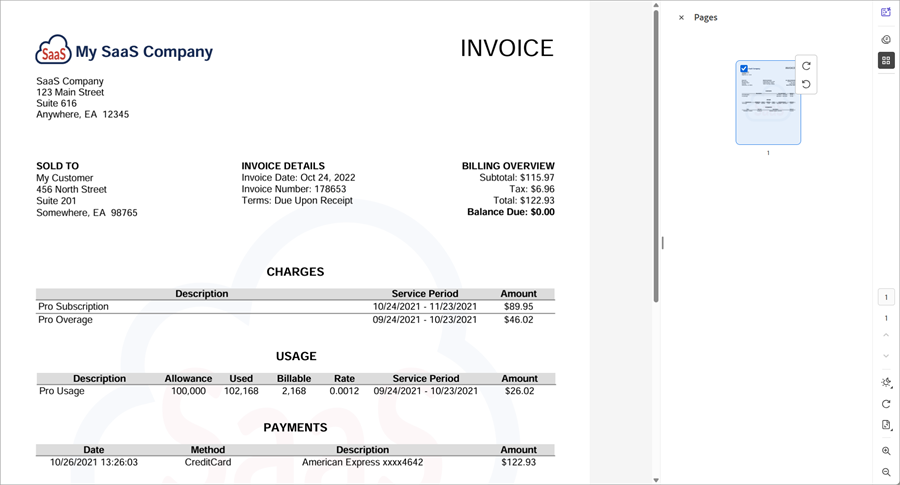
Watch a Google Drive folder for newly created files and retrieve each file, applying format conversion rules based on its type. The file’s data is then sent to the DynamicPDF API dlex-layout (DlexPath) custom Make module using a fixed DLEX path and the original filename as the layout data reference. After processing, the scenario generates a standardized output filename by removing the .json extension and appending pdf. The resulting PDF is uploaded into a defined Google Drive output folder, completing an automated end-to-end report generation cycle.

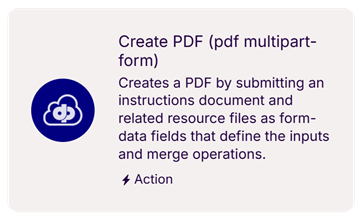
Watch a Google Drive folder for new files, retrieve each file, and determine its extension to classify it into the correct DynamicPDF input type. It then generates a JSON instructions object and sends both the file and instructions to the DynamicPDF API pdf (multipart-form) custom Make module for processing. After conversion, the workflow produces a standardized output filename and uploads the resulting PDF to a designated Google Drive output folder.

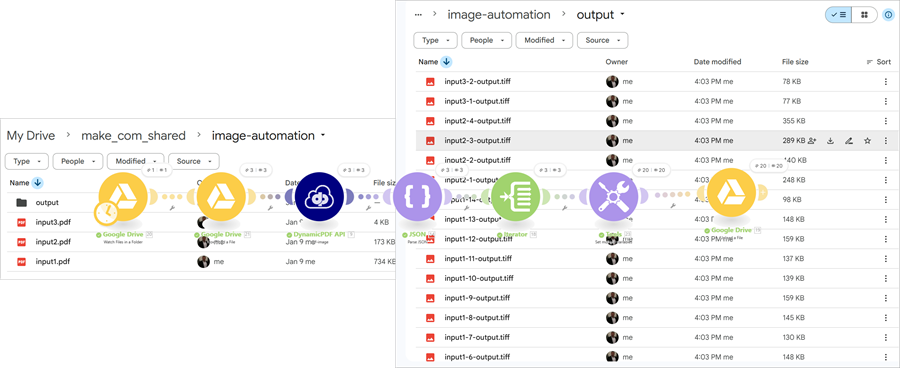
Watch a Google Drive folder for new PDF files, retrieve each file, and send it to the DynamicPDF PDF API pdf-image custom Make module to rasterize the pages as TIFF images. The workflow parses the JSON response, iterates over the images array, and converts each page’s base64 image data into a binary file. For each page, it builds an output filename from the original PDF name, the page number, and the content-type-derived extension, then uploads the resulting image files to a designated Google Drive output folder.
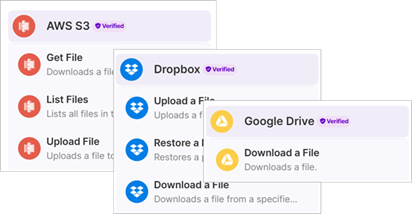
How you obtain a resource is not important for understanding the sample scenarios that follow. The file could come from Google Drive, Dropbox, a public URL, an Amazon S3 bucket, or any other source supported by Make. What matters is that the module producing the file provides the required metadata, including the file name, MIME type, and binary content, so it can be sent correctly to the DynamicPDF API endpoints.
Batch Conversion pdf (multipart-form) endpoint
Download solution blueprint: Solution Batch Conversion pdf-endpoint Blueprint

Scenario Steps
- Connect to a drive in Google Drive and watch for new files.
- For each file, download each sequentially (fully processing each file before progressing to the next file).

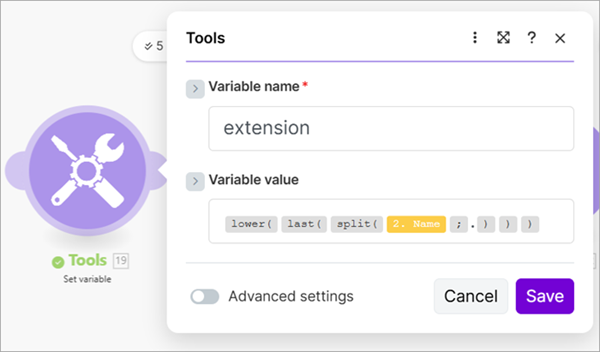
- Add a Set variable module and create a variable named
extensionand get the extension from the previous Download a File module as the variable's value.
- Add a Set multiple variables module and create a variable named
typeand a variable namedresourceName. - Use the
extensionvariable to decide thetypevariable's value. This value is thepdfendpoint's Instructions document. - Use the file's name as the
resourceNamevariable's value.
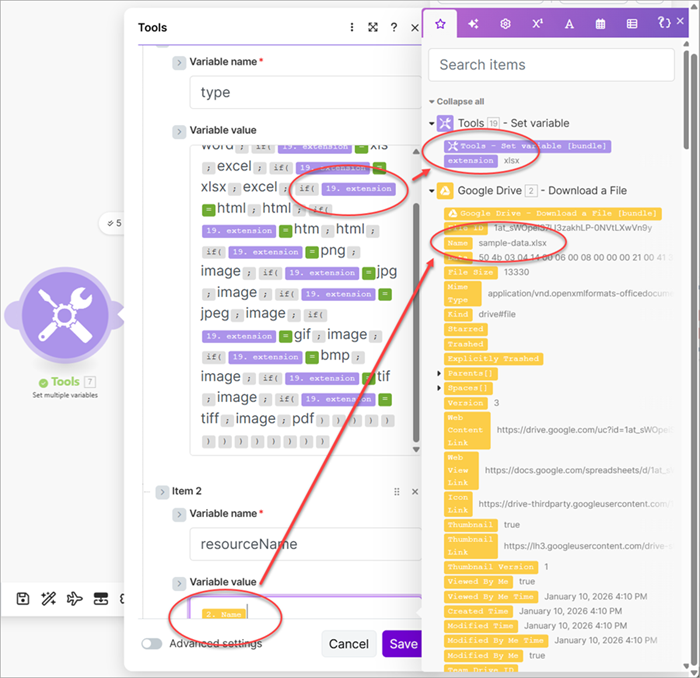
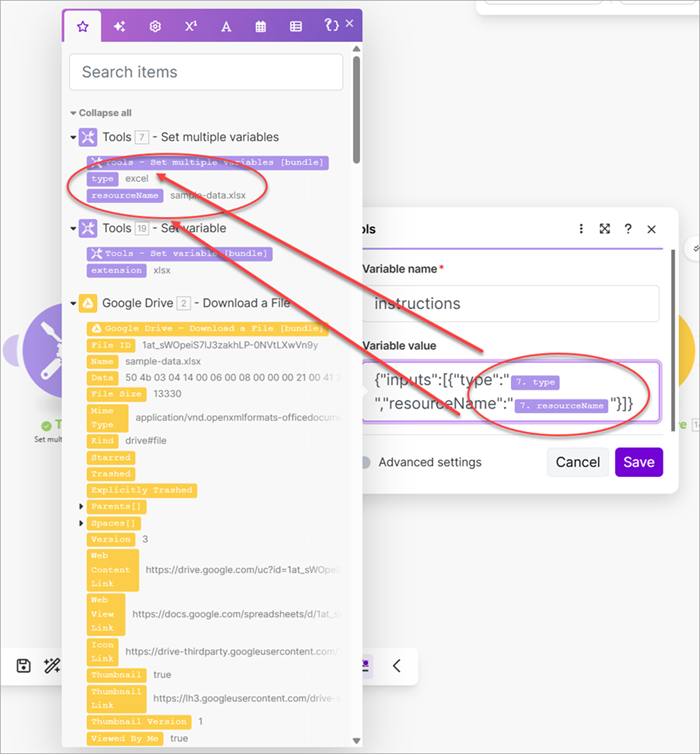
- Create another Set a variable module and create a variable named
instructions. - Create the instructions JSON document using the
typeandresourceNamefrom the previous module.
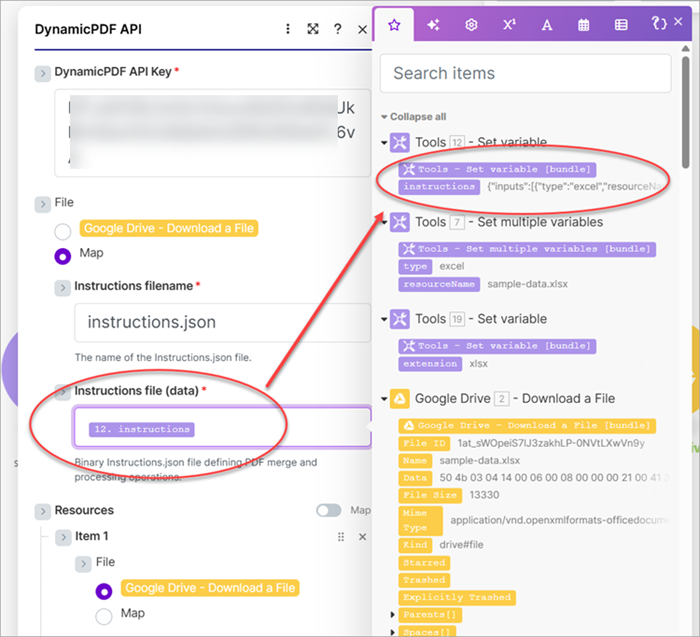
- Add a Dynamic PDF pdf (multipart-form) module. Assign the
instructionsvariable's value to the Instructions file (data) and assign the Resource to the file from the Google Drive Download a File module.
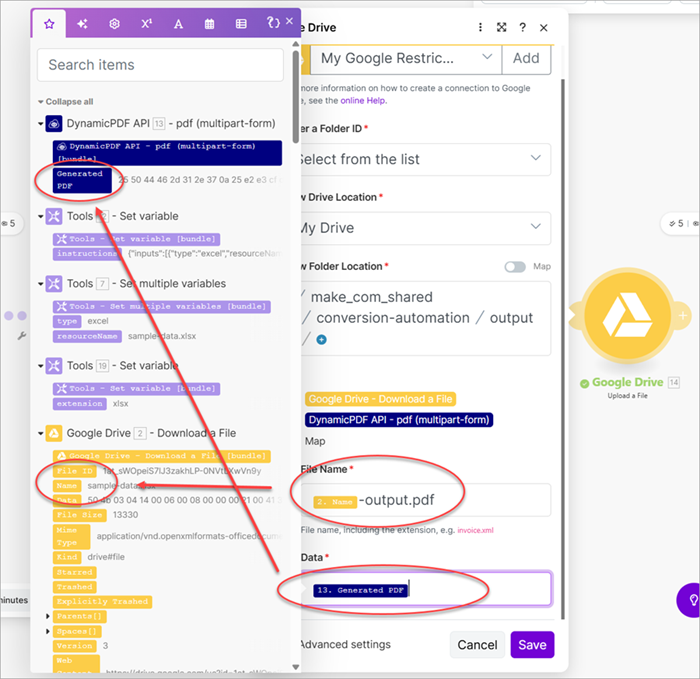
- Add a Google Drive Upload a File module and map the File Name to the input file's name and append
-output.pdf. Map the Generated PDF binary to the File Name.
- Run the scenario and PDFs are created for each resource in Google Drive.
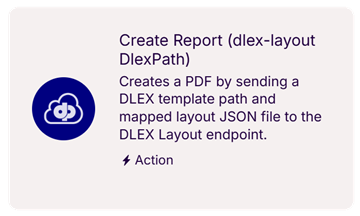
Batch Report Creation dlex-layout (DlexPath)
Download solution blueprint: Solution Report Creation dlex-layout (DlexPath) Blueprint

Scenario Steps
- Connect to a drive in Google Drive and watch for new files.
- For each file, download each sequentially (fully processing each file before progressing to the next file).

- Add a DynamicPDF API dlex-layout (DlexPath) custom Make module.
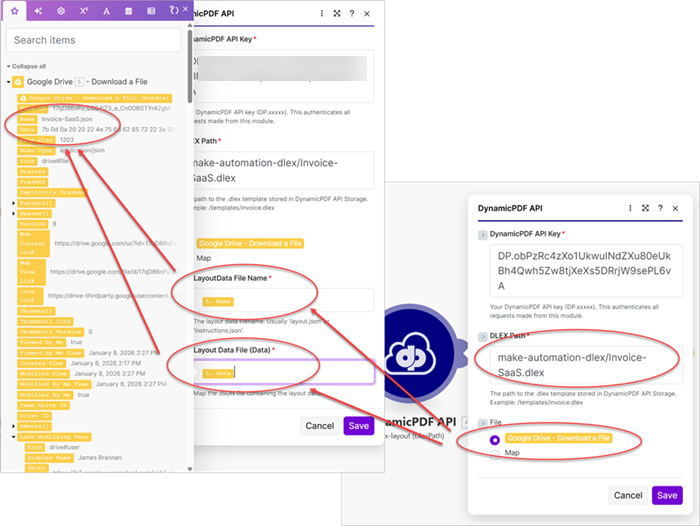
- Set the Dlex Path with the path to the DLEX file in DynamicPDF API storage.
- Map the Layout File Name to the layout data file's Name and the Layout Data File (Data) to Data in Google Drive Download a File.
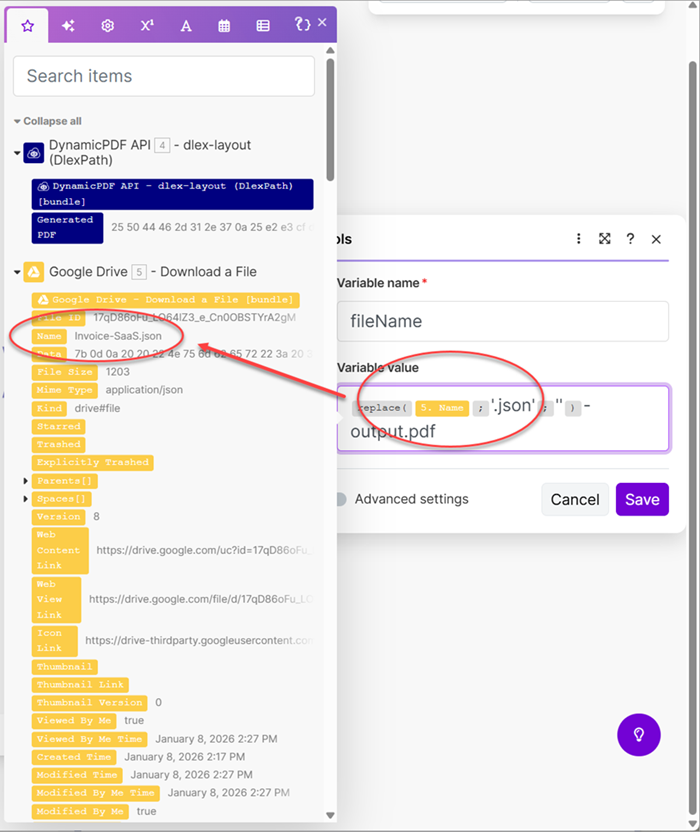
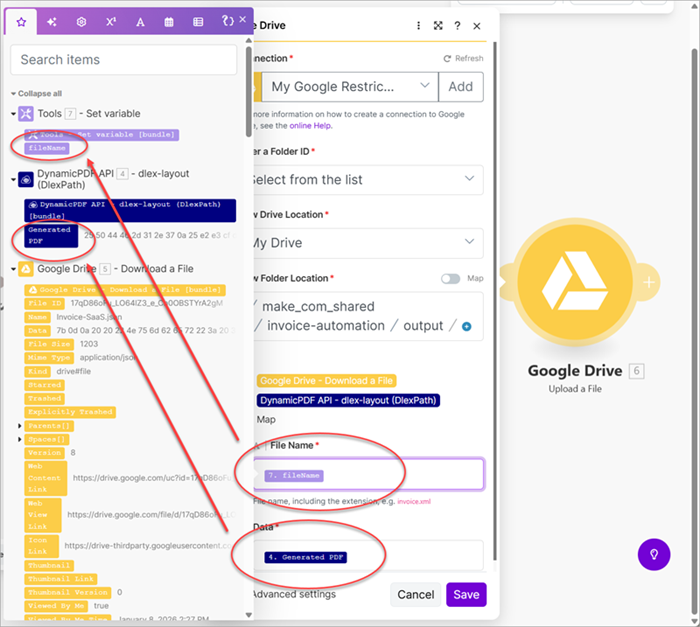
- Add a new Set a variable module and assign the Variable name as
fileName, Variable value as the Name from Google Drive Download a File, and remove the JSON extension from the file name.
- Add a Google Drive Upload a File module and map the File Name to the fileName variable and the Data to the Generated PDF.
- Run the scenario and the reports are processed and saved to Google Drive.
Batch PDF Rasterization pdf-image
Download solution blueprint: Solution Batch PDF Rasterization pdf-image Blueprint

Scenario Steps
- Connect to a drive in Google Drive and watch for new files.
- For each file, download each sequentially (fully processing each file before progressing to the next file).
- Connect to the DynamicPDF API pdf-image module and process each file as a PNG.
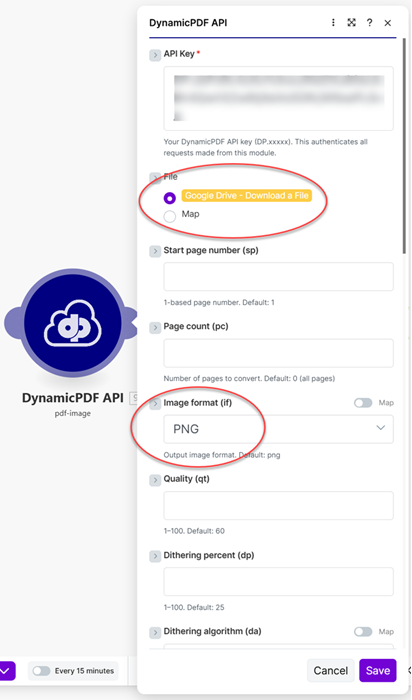
The pdf-image endpoint returns a JSON response containing the rasterized images base64 encoded.
- Use a Parse JSON module to parse the JSON into a data structure.
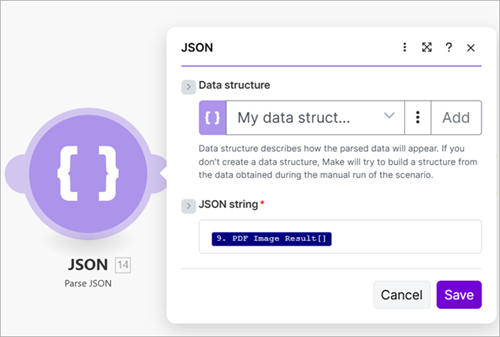
- Create an Iterator to iterate through the images created by the Parse JSON module.
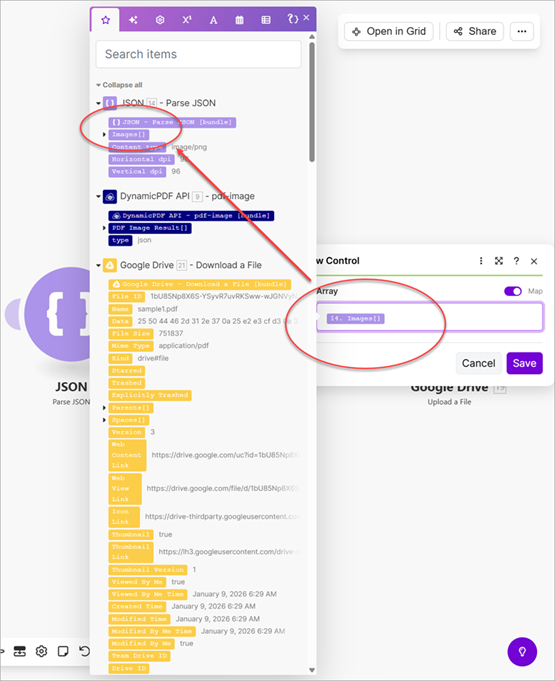
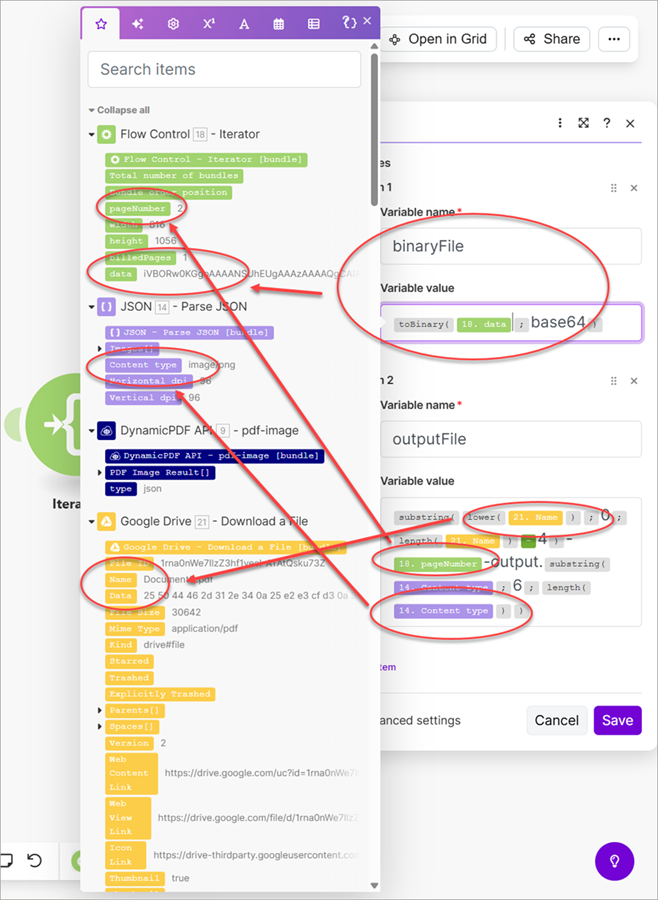
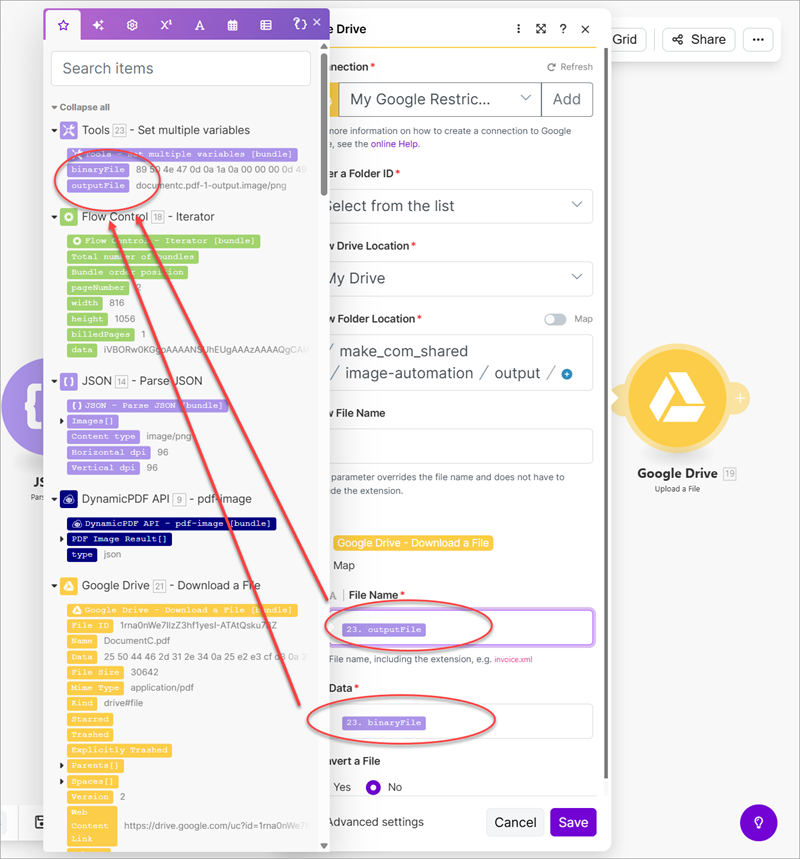
- Add a Set Multiple Variables module and create a variable named
binaryFileand a variable namedoutputFile. - Convert the data from base64 to binary and assign it as the
binaryFilevariable's value. - Get the name and page number of each converted image and construct a file name and assign it as the
outputFilevariable's value.
- Add a Google Drive Upload a File module and save the created binary image as a file on Google Drive.
- Ensure one or more new PDF documents are in the specified input folder and then run the scenario and the each PDF's pages are rasterized and then saved as images.