Using the DynamicPDF API Make App
 Learn how to use the DynamicPDF API custom Make app by building a scenario that combines the dlex-layout (DlexPath) and pdf-image modules to generate PDF reports and rasterize them directly within Make.
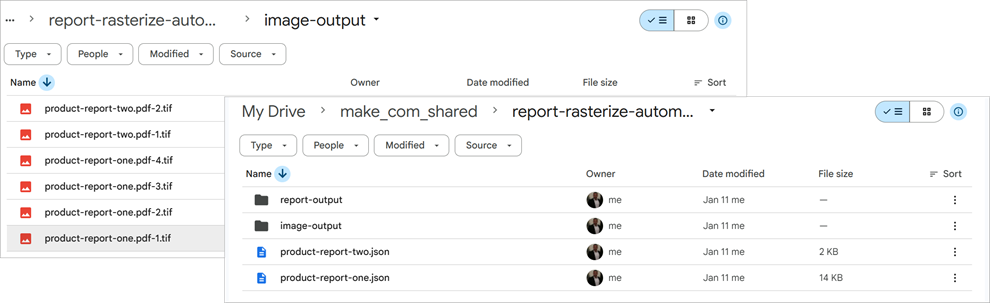
In this tutorial, you’ll build a Make scenario that batch-generates DLEX reports from files in a Google Drive folder, saves each resulting PDF, and then rasterizes those PDFs into TIFF images. Both the PDF reports and their corresponding TIFF outputs are written back to Google Drive. This walkthrough demonstrates a practical, real-world workflow that shows how easily the DynamicPDF API can automate document generation and downstream processing.
Be certain to check-out our other real-world solutions using the DynamicPDF API after completing this tutorial.
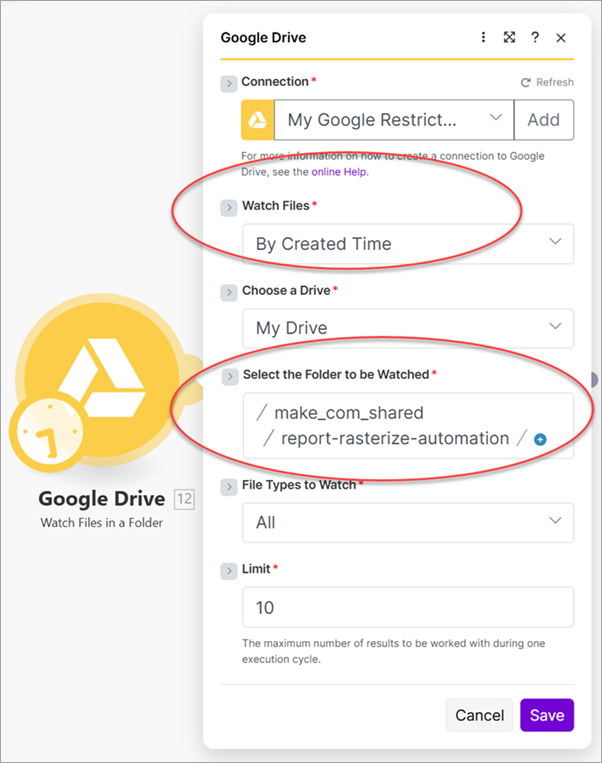
- Add a Google Drive Watch - Files in a Folder module and configure it to monitor newly created files by selecting By Created Time for Watch Files (Google Drive - Watch Files in a Folder).
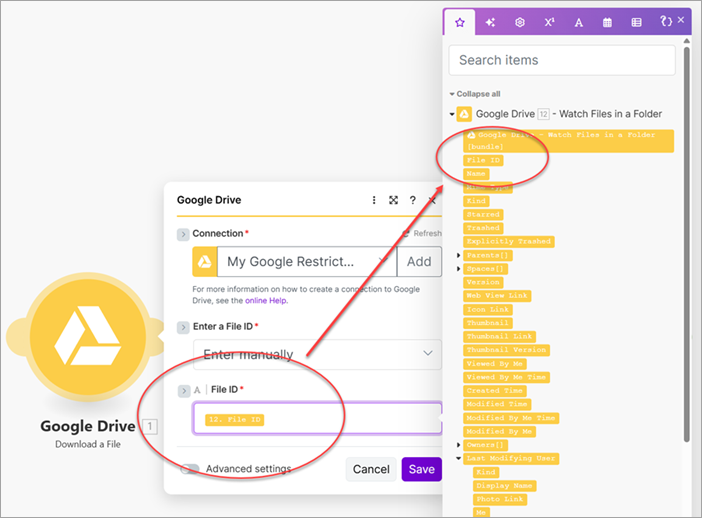
- Add a Google Drive - Download a File module and map its File ID parameter to the File ID from the Google Drive - Watch Files in a Folder module (Google Drive - Download a File).
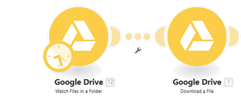
You now have two modules in the scenario: Google Drive - Watch Files in a Folder and Google Drive - Download a File.
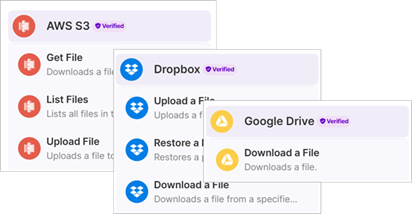
How you obtain a resource is not important for understanding the sample scenarios that follow. The file could come from Google Drive, Dropbox, a public URL, an Amazon S3 bucket, or any other source supported by Make. What matters is that the module producing the file provides the required metadata, including the file name, MIME type, and binary content, so it can be sent correctly to the DynamicPDF API endpoints.

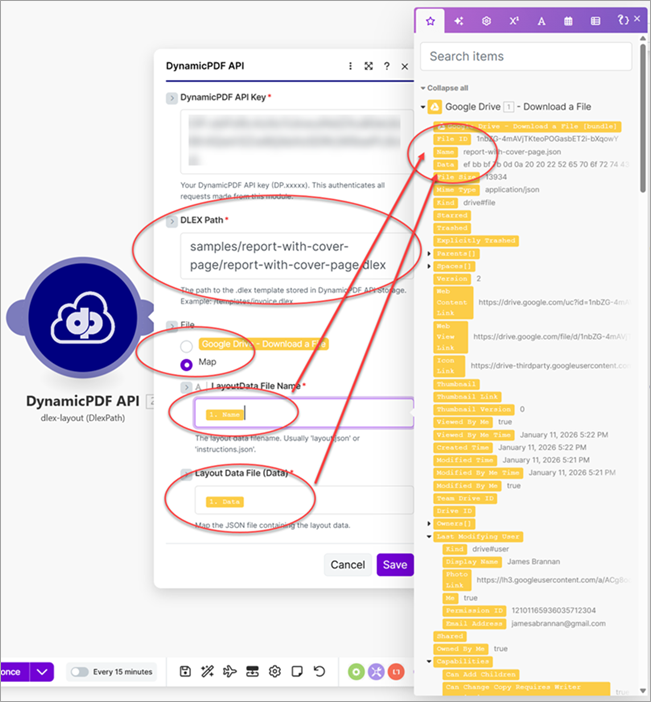
- Add a DynamicPDF API - dlex-layout (DlexPath) module and add the dlex path from DynamicPdf API storage to the DLEX Path and then select Map for the File.
- Map the Google Drive - Download a File module's Name to LayoutData File Name and Data to Layout Data File (Data).
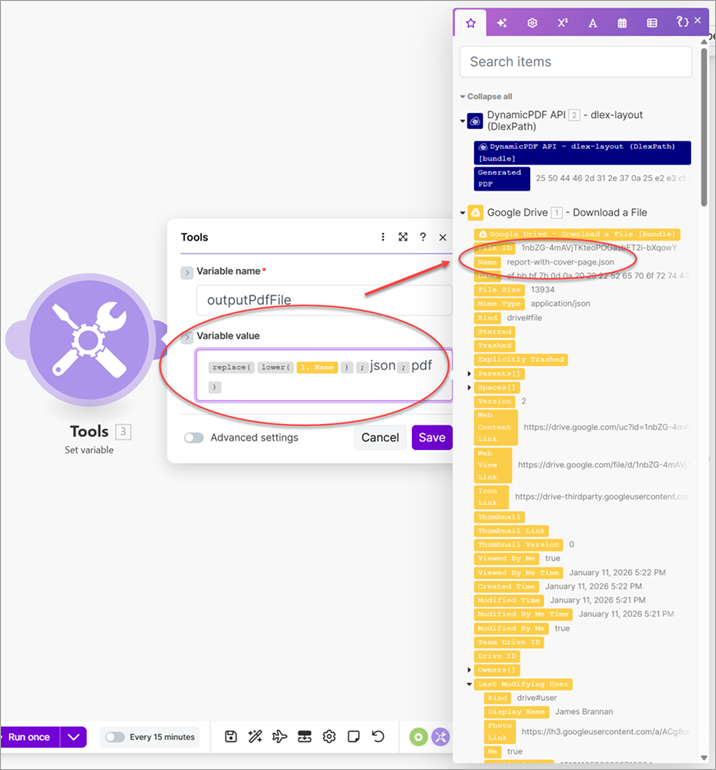
- Add a Tools - Set variable module and assign
outputPdfFileas the Variable name, and parse the Name from Google Drive - Download a File to replacejsonwithpdf(Tools - Set variable).
{{replace(lower(1.name); "json"; "pdf")}}

- Add a Google Drive - Upload a File module to the scenario (Google Drive - Upload a File).
- Map the
outputPdfFilevariable to the File Name and Generated PDF to Data.
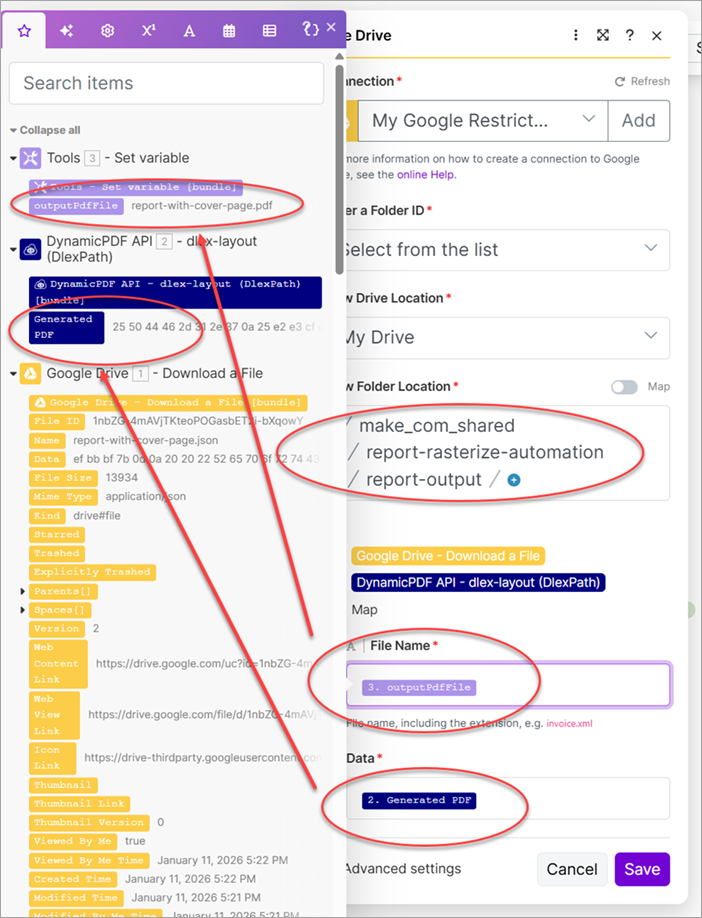
The scenario now contains five modules that work together to generate a PDF report for each DLEX file in the source Google Drive folder and save the finished reports to a separate Google Drive folder.

Add a Router so the scenario can also route the generated PDF reports to the DynamicPDF API pdf-image module for rasterization, and then pass the resulting images to a Google Drive - Upload a File module to save the rasterized outputs to Google Drive (Router).
- Click the small wrench between the Tools and Google Drive modules and add a Router module.
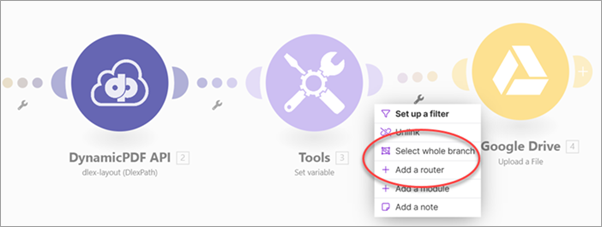
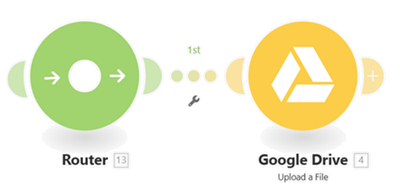
When the Router is added, it automatically connects the Google Drive - Upload a File module as the first route.
- Add a DynamicPDF API - pdf-info module as the second route.
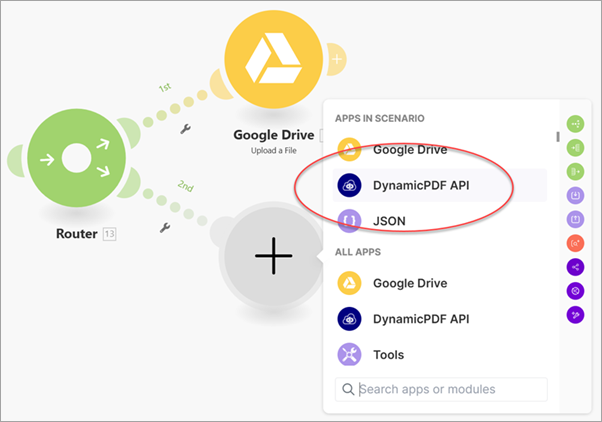
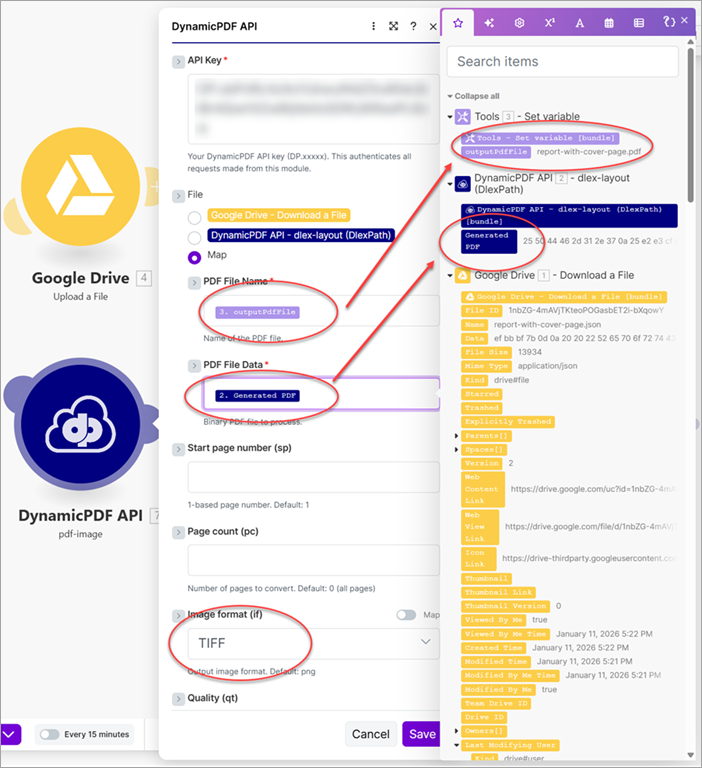
- Map
outputPdfFileto PDF File Name and Generated PDF to PDF File Data. Select TIFF as the Image Format (if).

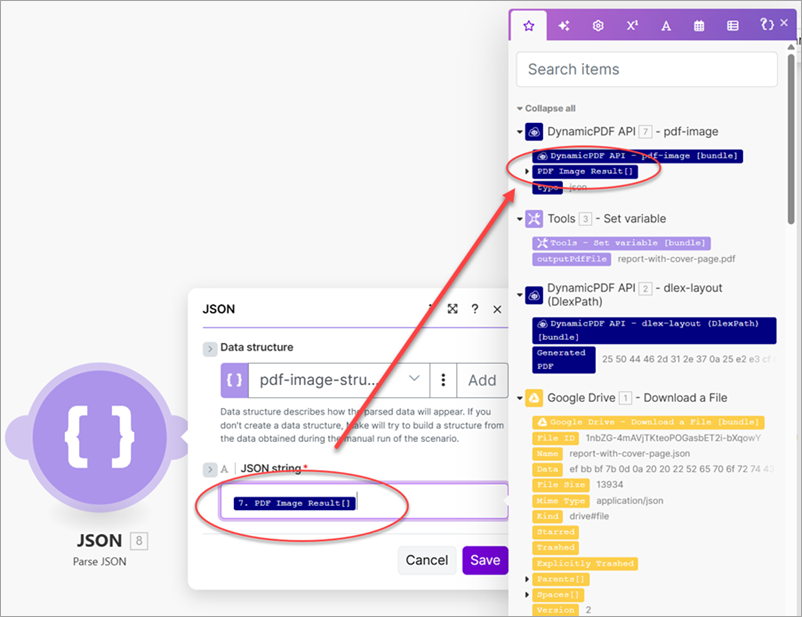
- Add a JSON - Parse JSON module and map PDF Image Result to the JSON string.
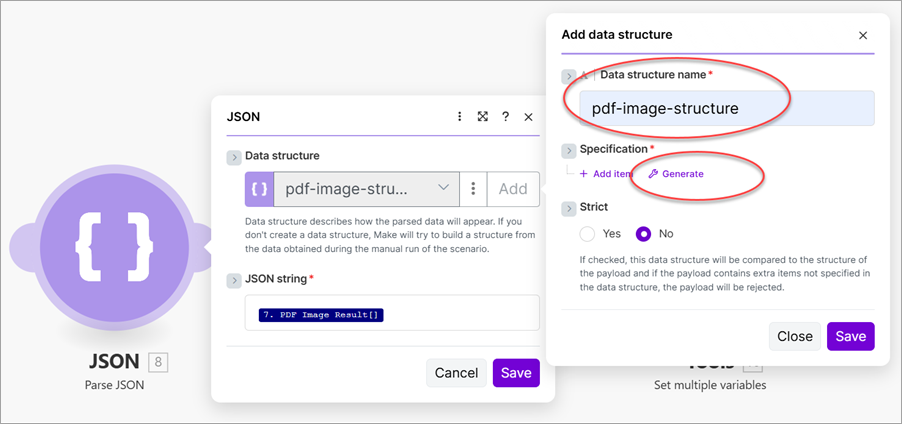
- Select Add to open a dialog. Enter
pdf-image-structureas the Data structure name and then select Generate to open another dialog.
- Select JSON as the Content type and add a sample data structure of JSON returned from a call to the
pdf-imageendpoint to Sample data.
{
    "images":
    [
        {
            "pageNumber":"--numeric-text--",
            "width":--numeric--,
            "height":--numeric--,
            "billedPage": --numeric--,
            "data" :  "--base64encoded-data--"
        }
    ],
    "contentType": image/--imagetype--
    "horizontalDpi": --numeric--,
    "verticalDpi": --numeric--
}
See pdf-image API documentation for more information on the pdf-image endpoint.
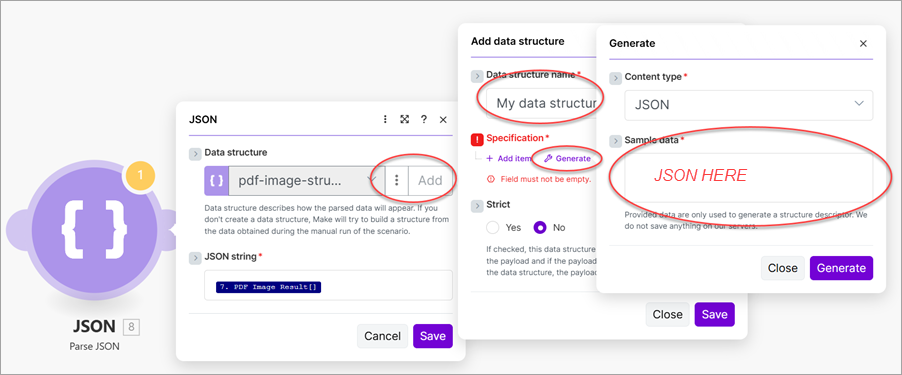
- Select Generate to generate the data structure.
- Add an Iterator module and assign
Images[]from the JSON - Parse JSON module (Iterator).
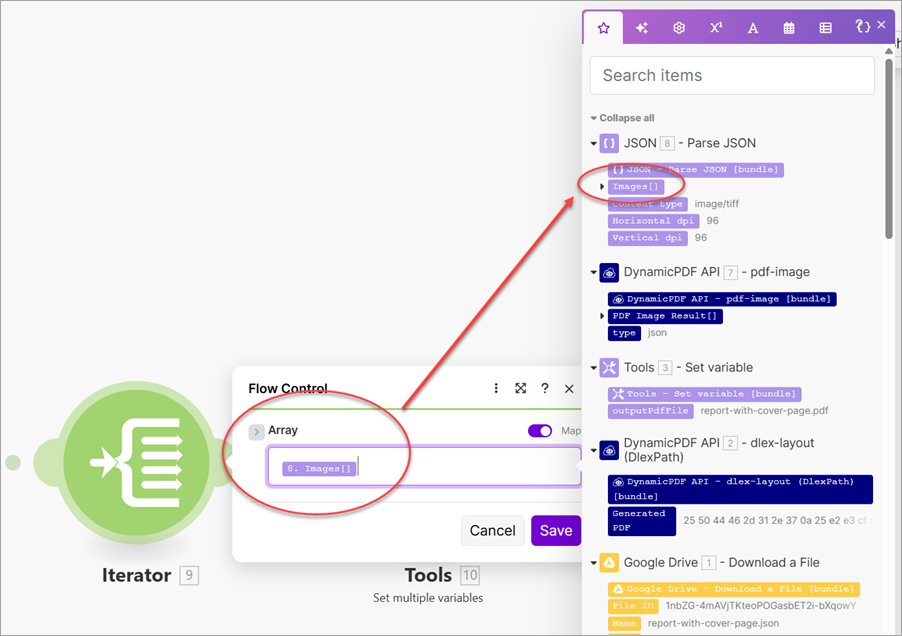
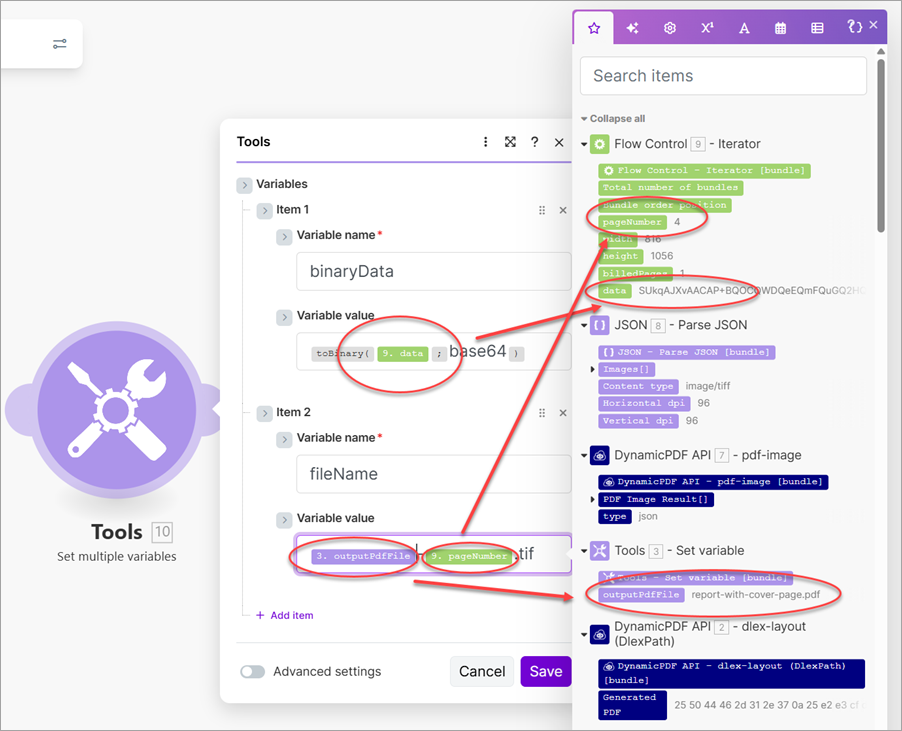
- Add a Tools - Set multiple variables module and create a variable named
binaryDataand a variable namedfileName(Tools - Set multiple variables). - Map the data from the Iterator and convert the data from base64 to binary.
{{toBinary(9.data; "base64")}}
- Map the
outputPdfFilefrom Tools - Set variable andpageNumberfrom the Iterator and construct the file name for each image.
{{3.outputPdfFile}}-{{9.pageNumber}}.tif
- Add a new Google Drive - Upload a File module to the scenario. Map the
fileNamefrom Tools - Set multiple variables to File Name andbinaryDatato Data.
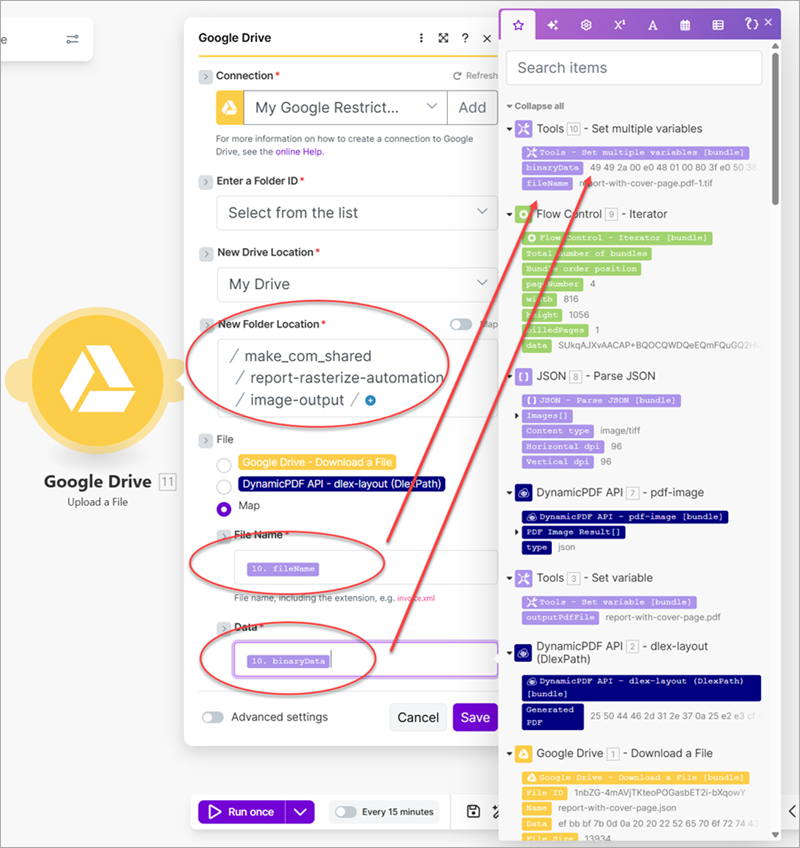
- Run the scenario and it creates two PDF reports and six images