Using Special Characters in Designer

Using a special character that is not supported by the API’s built-in fonts requires installing a font that includes that character. In this post, you will learn how to use the □ (U+25A1, WHITE SQUARE) in Designer and ensure it renders correctly in your generated PDFs.
The character □ (U+25A1, WHITE SQUARE) is part of the Unicode Geometric Shapes block, and most standard Windows fonts already support it, for example, the following fonts - commonly found on Windows systems - support the character.
- Segoe UI (default UI font — safest choice)
- Arial
- Calibri
- Times New Roman
- Consolas
Example
Let's use the Arial font to display the □ (U+25A1, WHITE SQUARE) character in a report using the Label control and the Symbol control.
Installing Font and Sample Project
Because the API does not include Arial by default, install it through your DynamicPDF API Dashboard before using it in Designer.
Refer to Global Fonts documentation for more information on installing fonts.
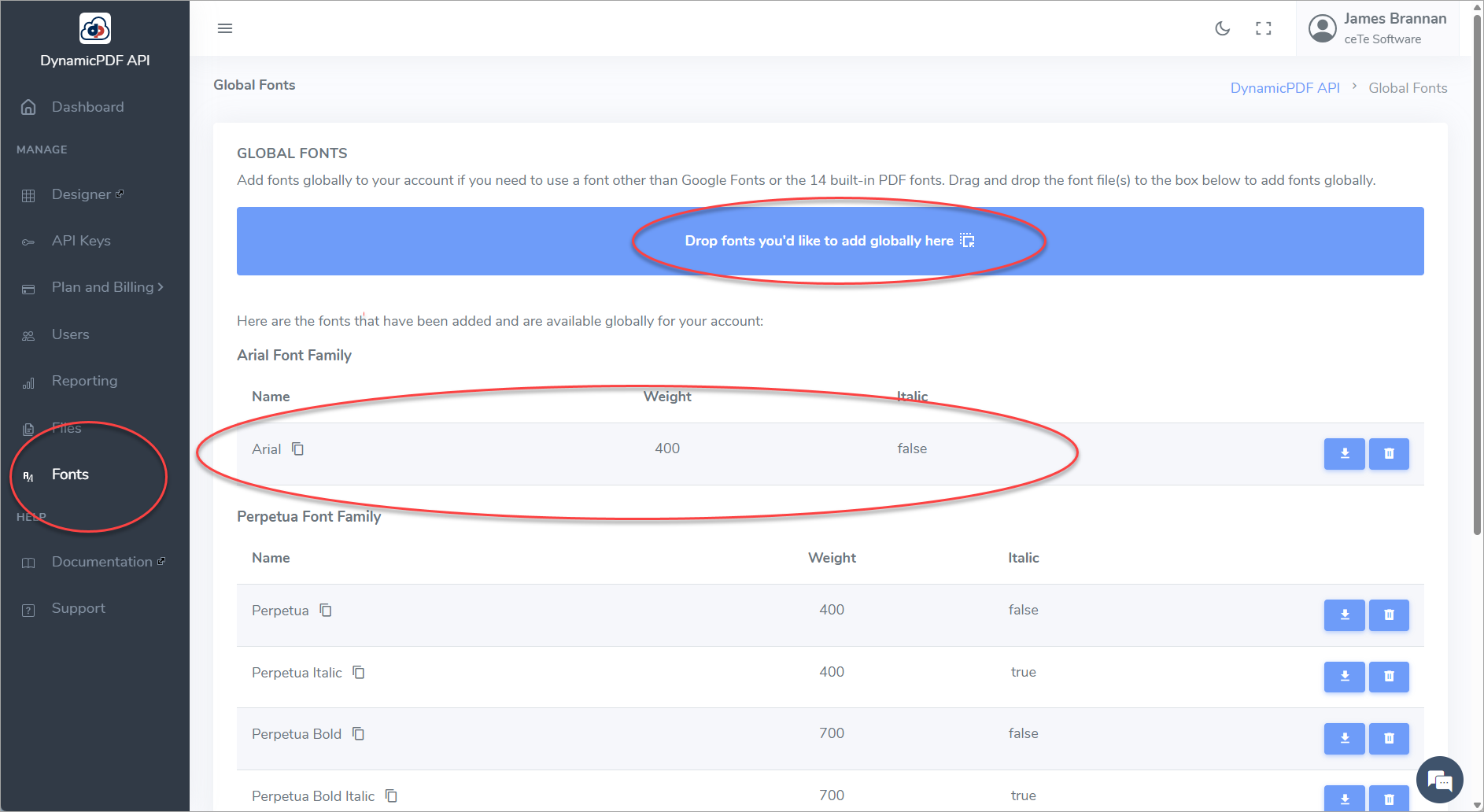
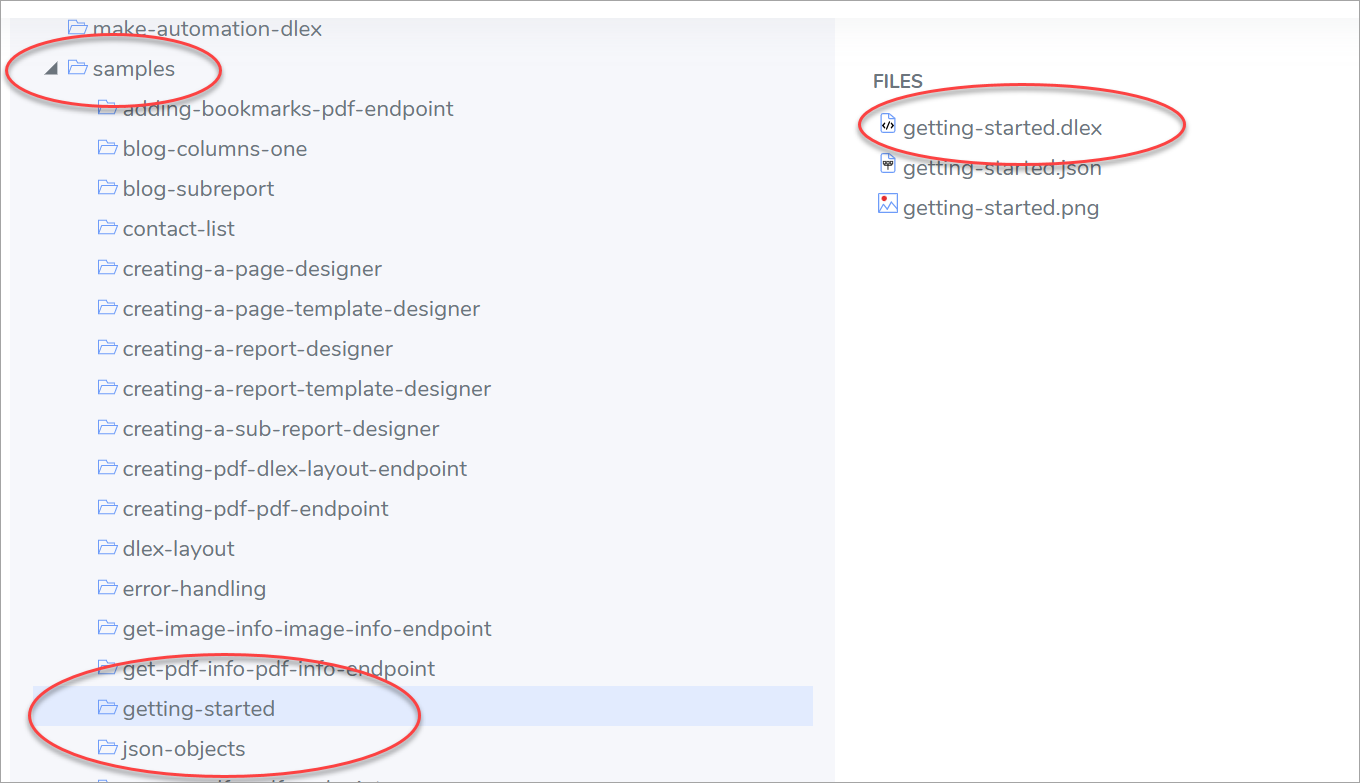
After installing the font, ensure that the Getting Started sample project is available in your Samples folder.
Follow the Designer Quick Tour tutorial to create the sample project, or install it directly using the instructions provided in that tutorial.
Using the Character in a Label
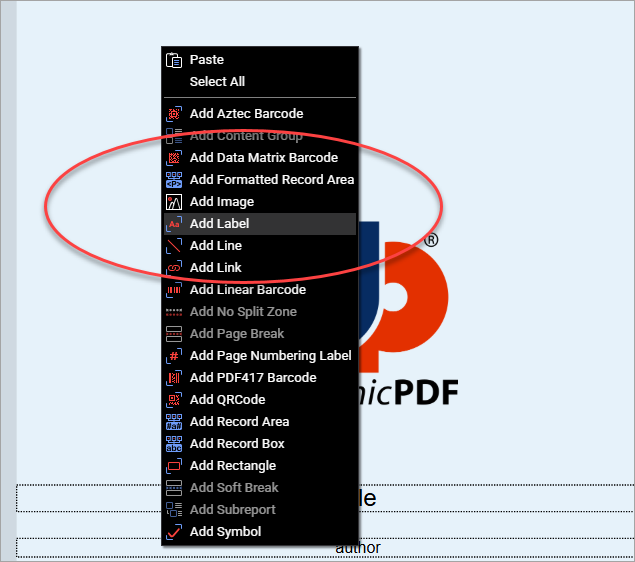
Open getting-started.dlex in Designer and add a Label control.
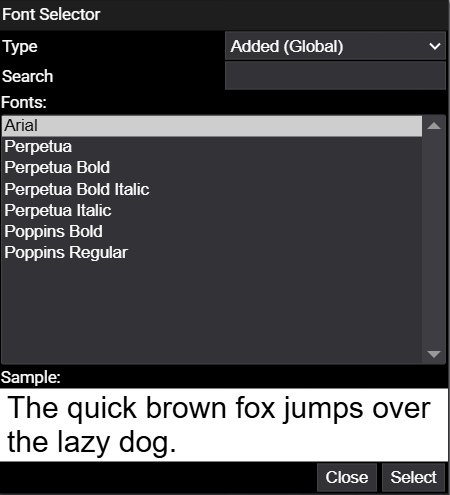
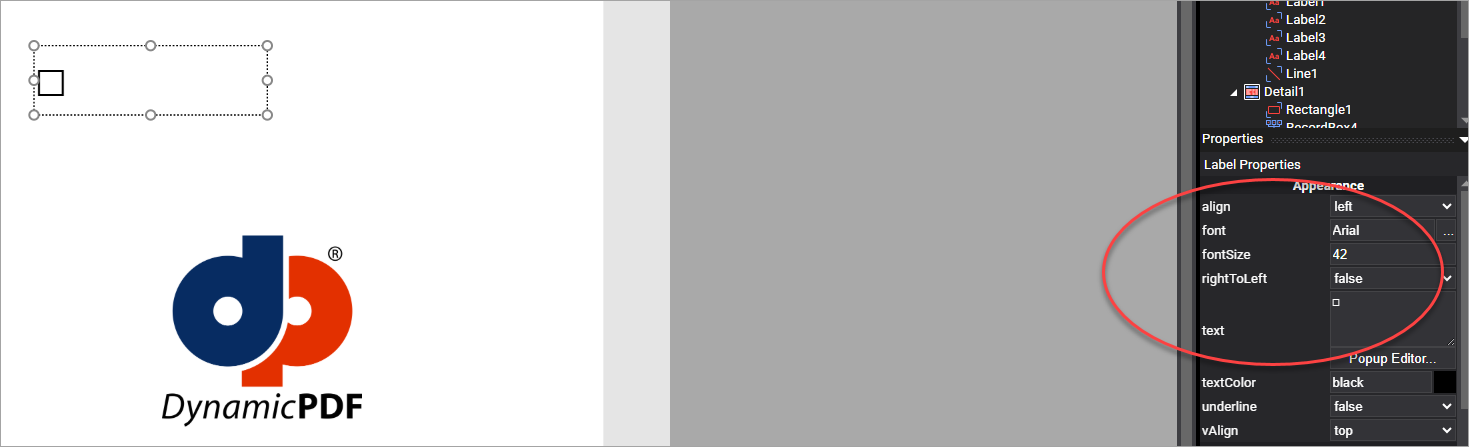
Set the font size to 42 and change the font to Arial using the Font Selector.
Next, open Character Map in Windows and locate the □ character. Select Arial as the Font (1), enable Advanced View (2), set the Character set to Unicode (3), and set Group by to Unicode subrange (4), and navigate to Block Elements & Geometric Shapes (5).
Of course, the Character Map is only one way to find a special character, you can also find them online or using other tools. For example, the Alt-Codes website lists Square Symbols that you could use.
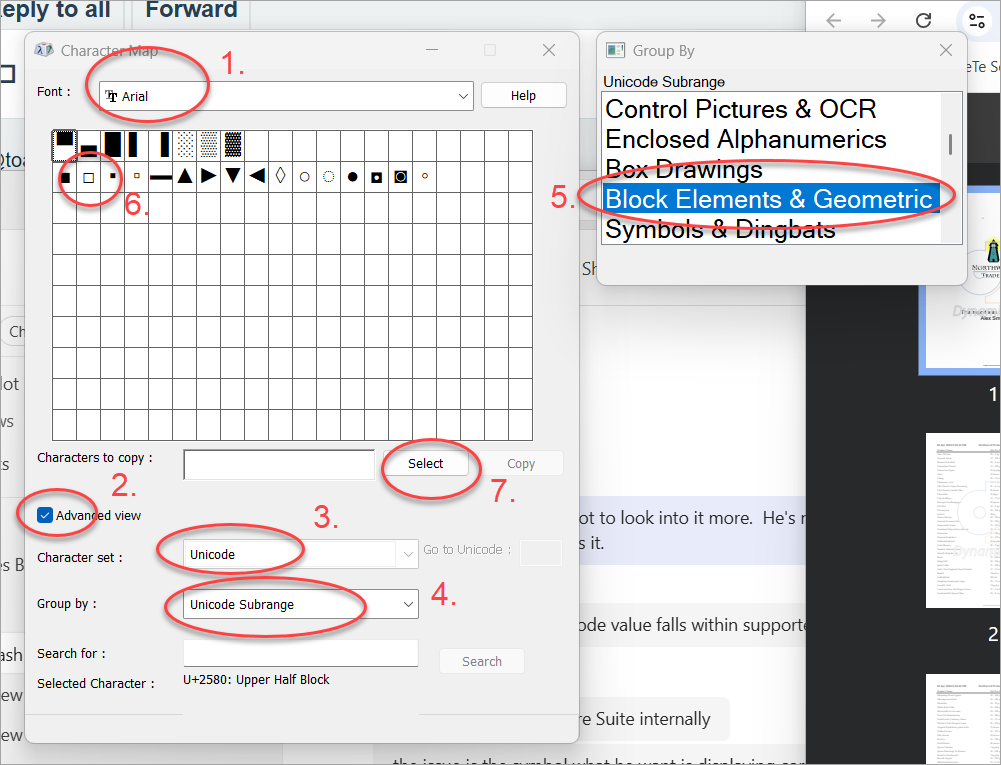
Select the character(6 and 7) and copy it to your clipboard.
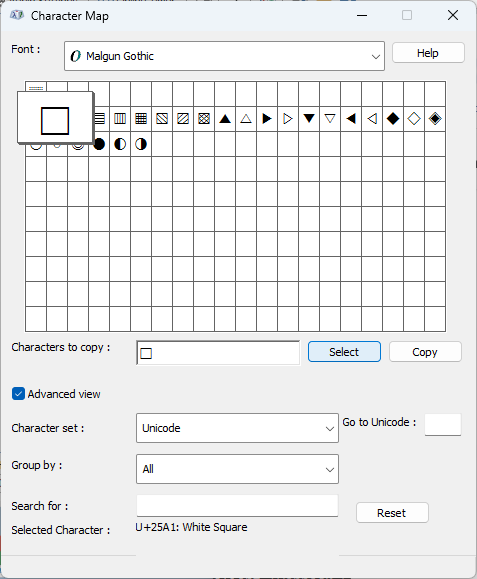
Paste the character into the Label control’s Text property and the Label should have the following properties.
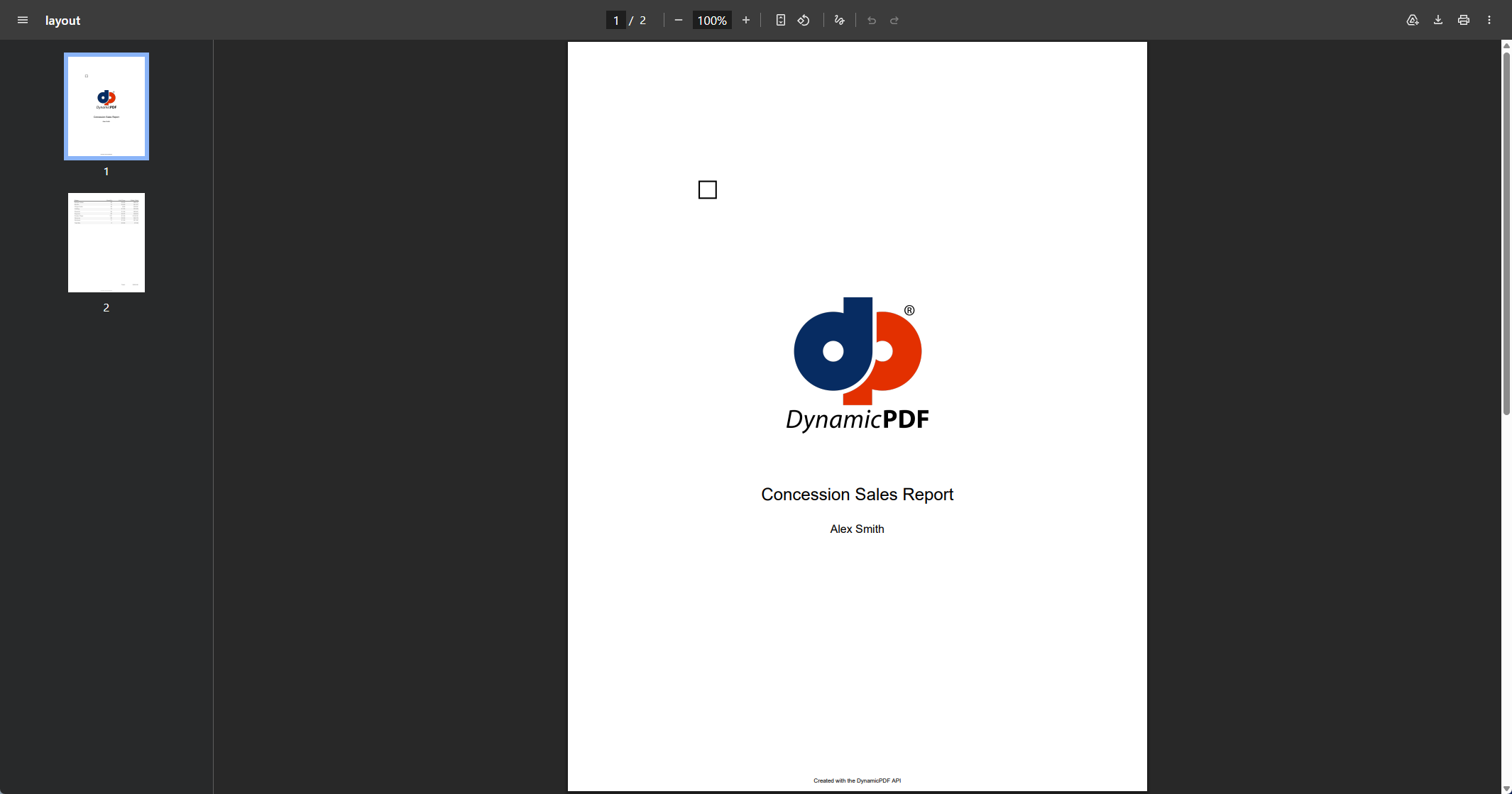
When you preview the report using Run Report, the character renders correctly in the generated PDF.
Using the Character in a Symbol
You can also use special characters in the Symbol control. Add the Symbol control and change the symbolType to custom. Choose Arial as the customFont, and paste the □ character into the customCharacter property.
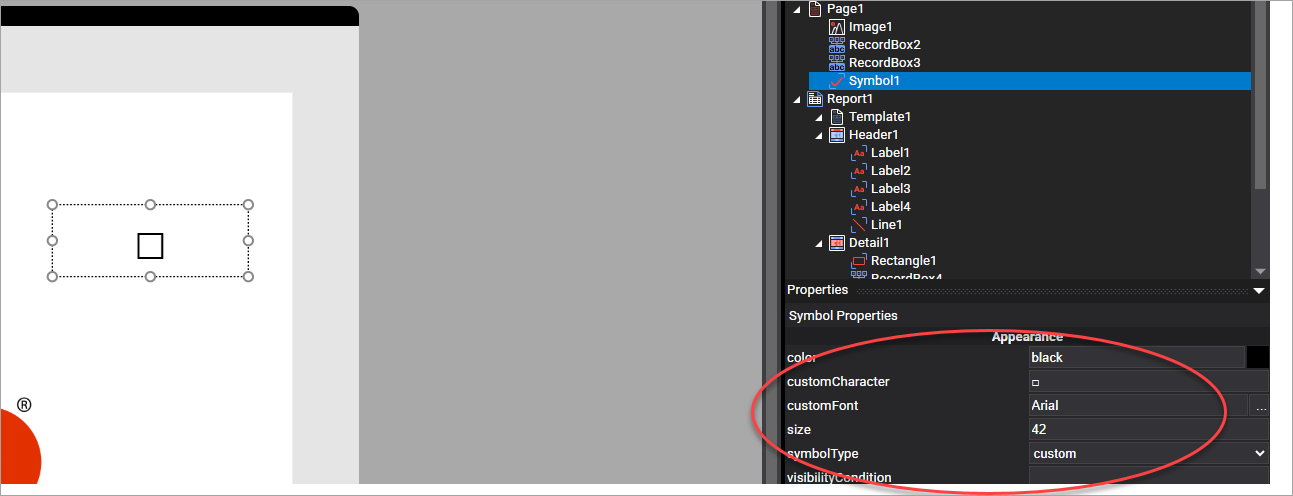
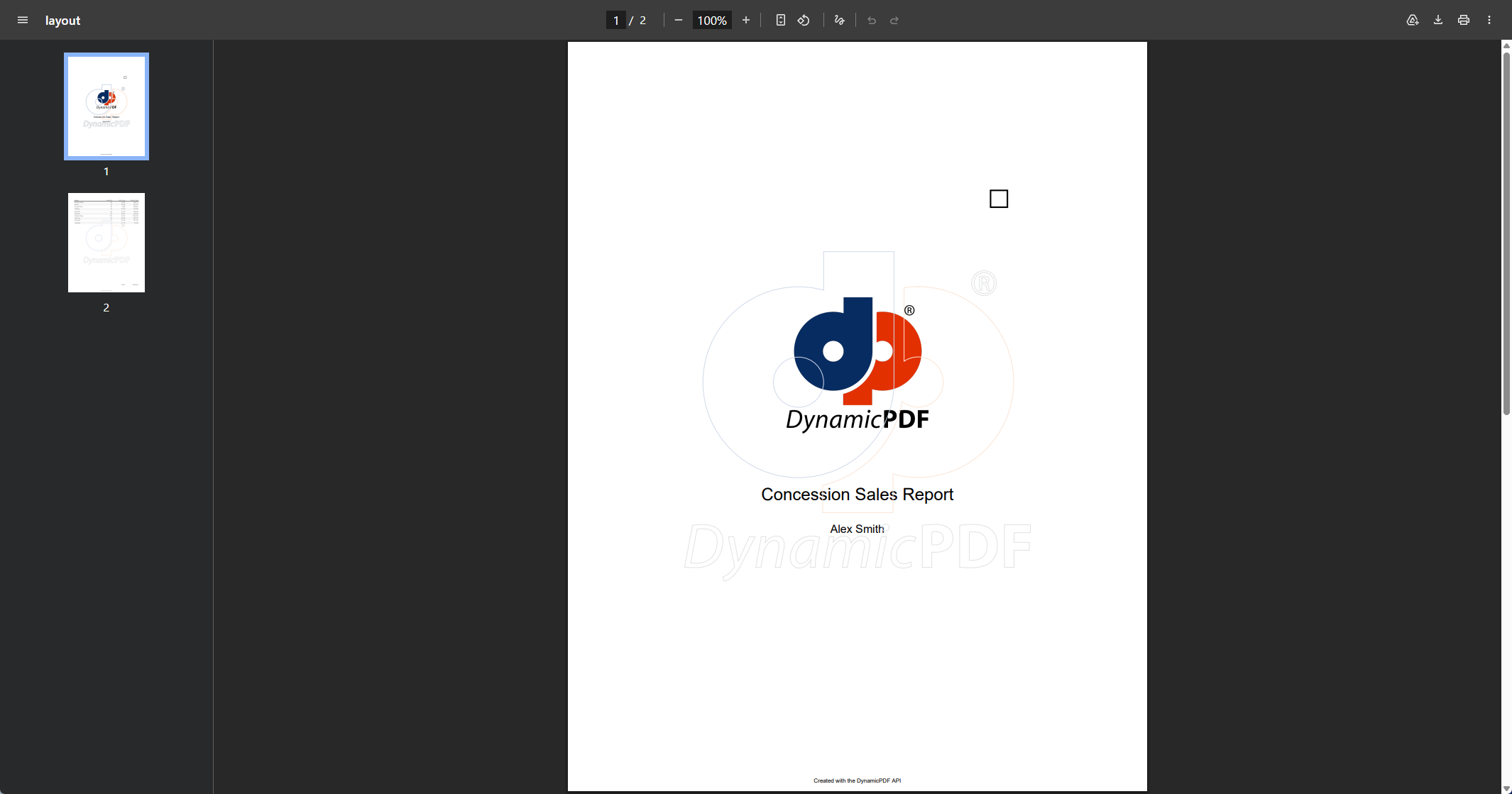
Preview the report using Run Report to confirm the symbol displays correctly.
Summary
When working with special Unicode characters, ensure that the selected font supports the character. Once the font is installed and applied in Designer, all controls in Designer can render the character correctly.